Guide · Money Matters on FIRE

From first launch to your FIRE point

Set it up once in about fifteen minutes, then come back and explore your future whenever you like. Follow the steps below, or watch the full walkthrough.


Step 1

Get oriented

Money Matters on FIRE does three things: it tracks what you own with live prices, analyses your allocation and financial health, and simulates your journey to financial independence.

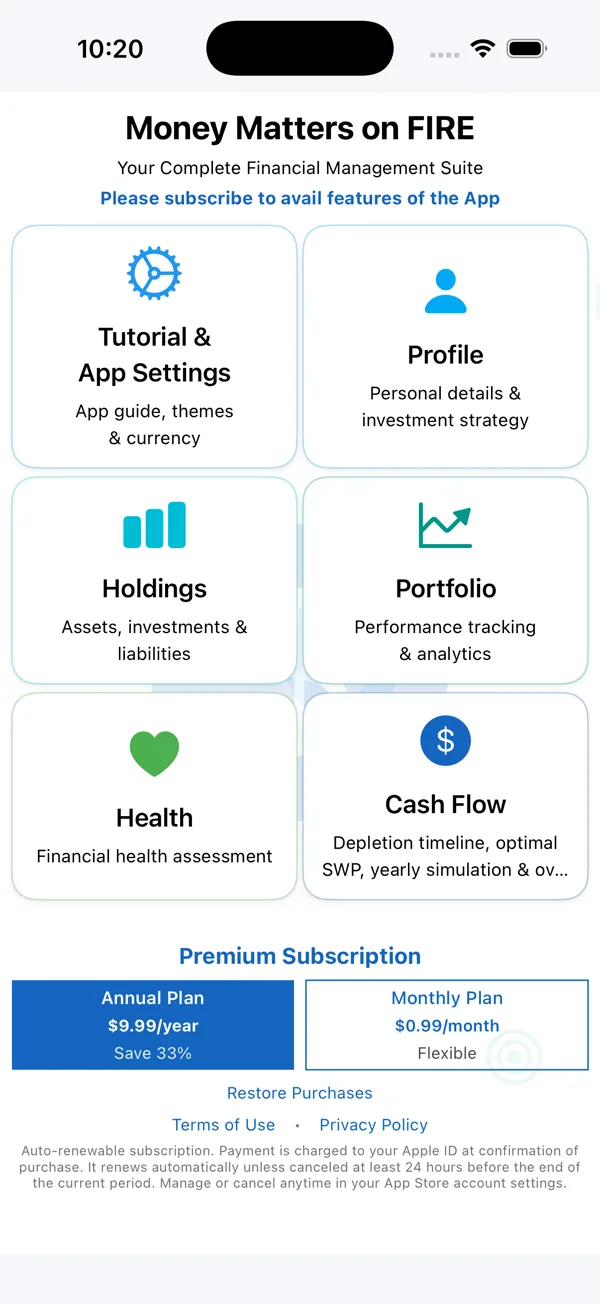
Everything is organised into six sections on the home screen:

  • Tutorial & App Settings — guide, themes, currency, backup
  • Profile — your details and investment strategy
  • Holdings — assets, investments and liabilities
  • Portfolio — performance tracking and analytics
  • Health — your financial health score
  • Cash Flow — simulation, depletion, optimal SWP and overview

Free trial: every section is unlocked for 10 days from install — no signup needed.
Home screen with six sections
Step 2

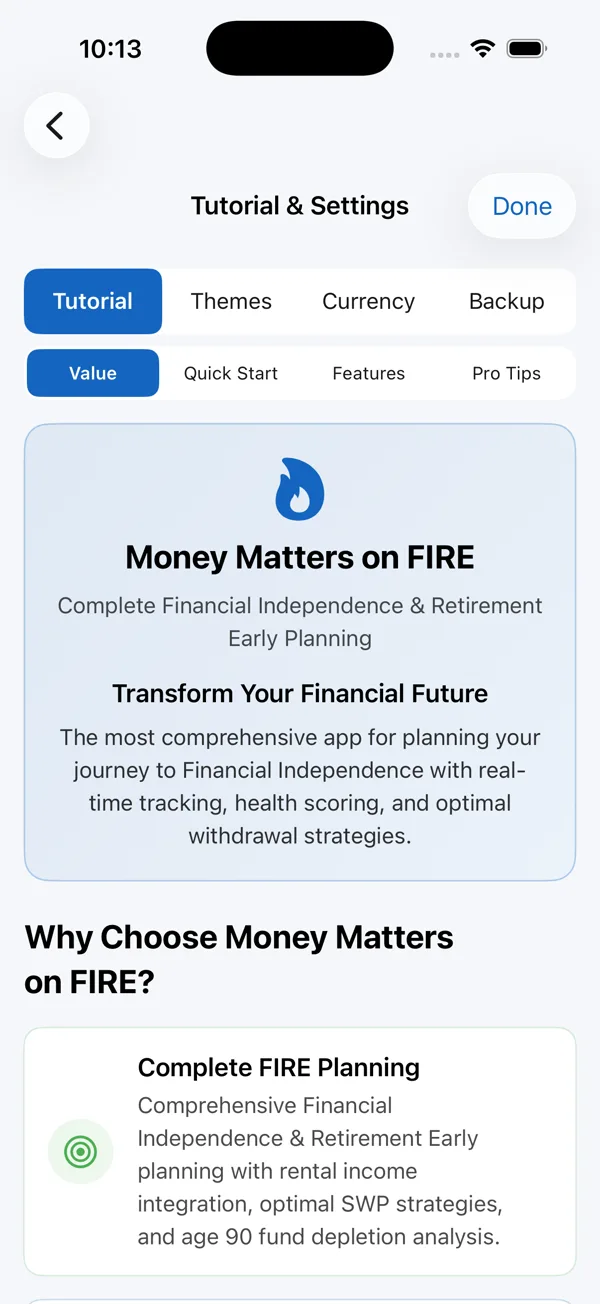
Tutorial & App Settings

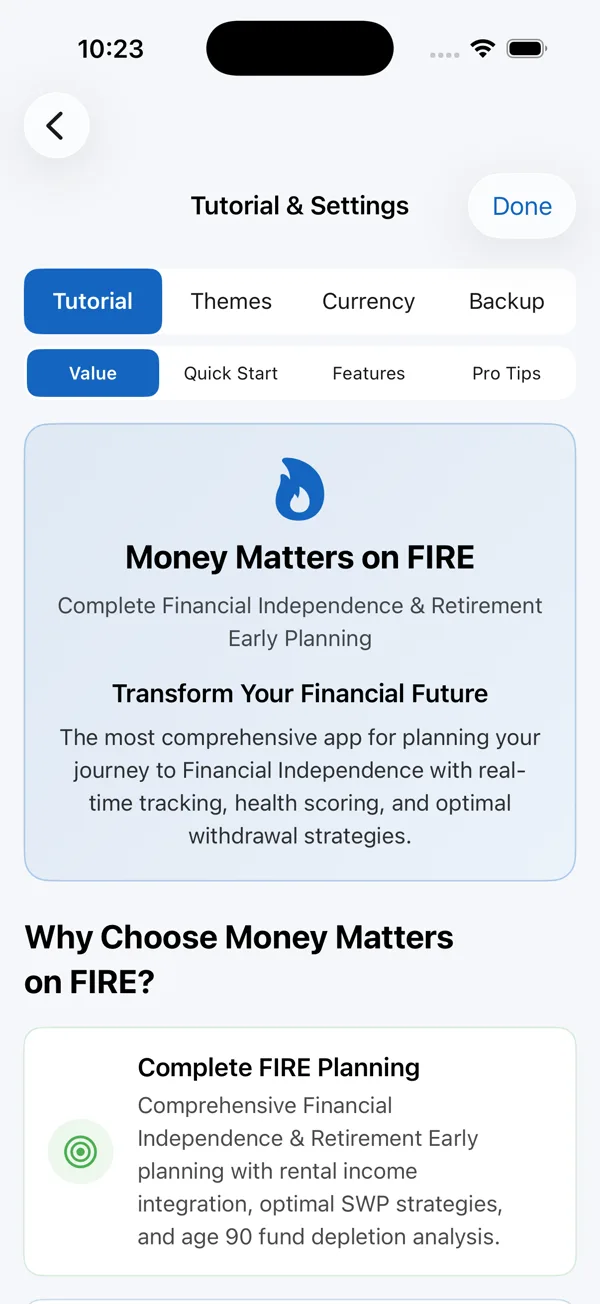
Tap Tutorial & App Settings. Inside you'll find a full guided tutorial you can read anytime — and this is where you choose your theme, set your currency, and back up or restore your data.

Tutorial and App Settings
Step 3

Tell the app about you

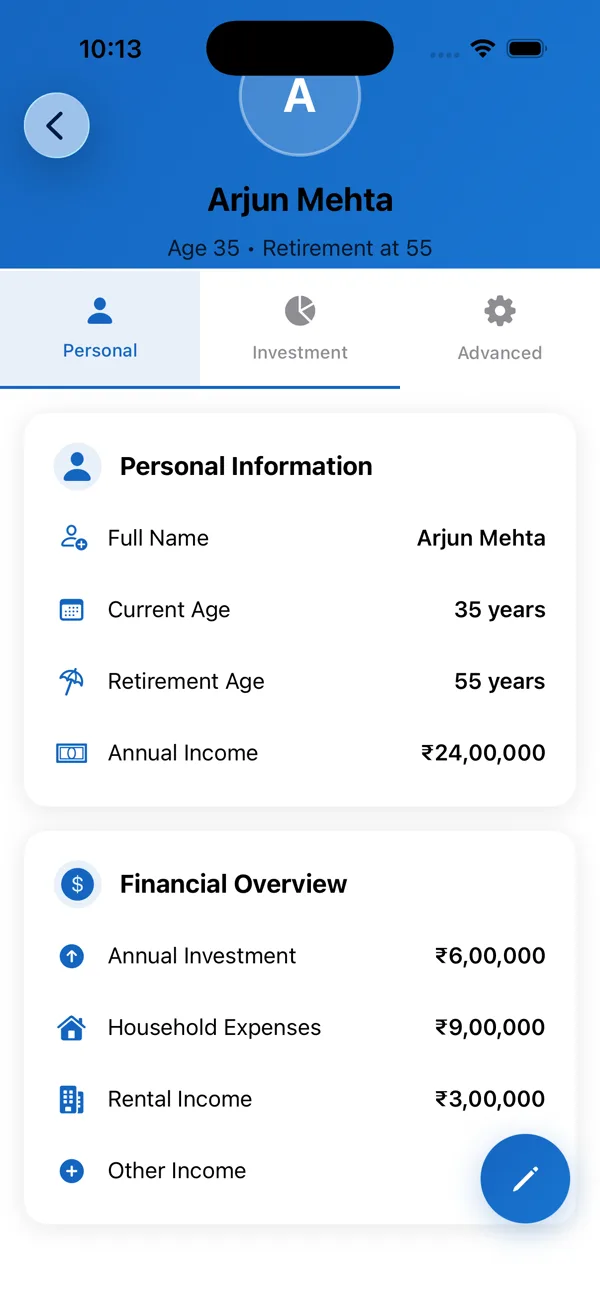
Open Profile so every projection is genuinely yours, not a generic guess.

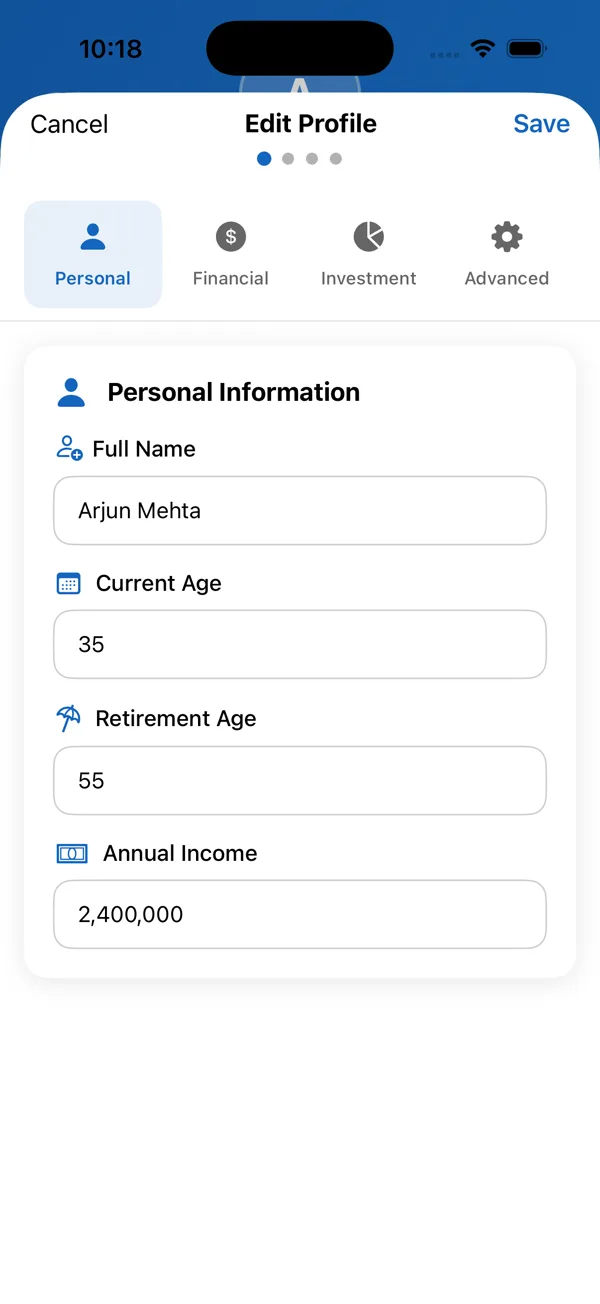
  1. Tap Edit.
  2. Enter your current age and the age you'd like to retire.
  3. Add your income, expenses and how much you invest.
  4. Save — these everyday numbers set the timeline of your journey.
Profile screen Profile edit form
Step 4

Investment mix & advanced settings

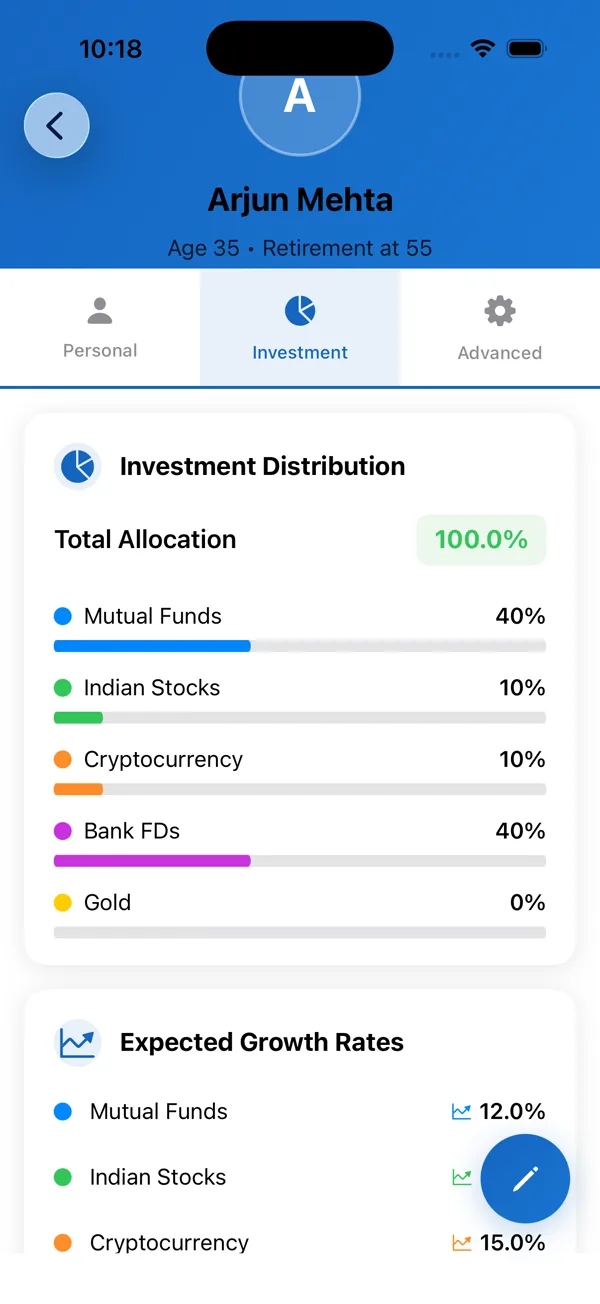
Under the Investment tab, choose how your money is divided across asset classes and the growth you expect from each. There's no single right answer — adjust to match your own outlook.

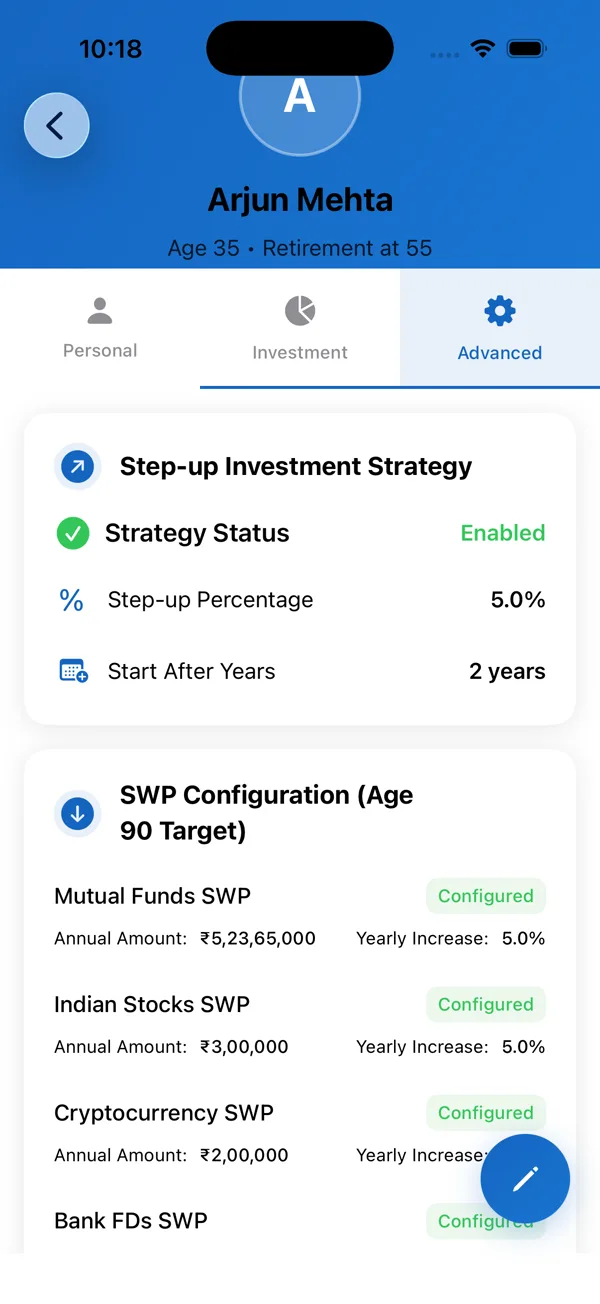
The Advanced tab is where it gets powerful:

  • Set a yearly step-up so your investments grow as your income does.
  • Define how you'll withdraw money once you retire.
Investment tab Advanced tab
Step 5

Add your holdings

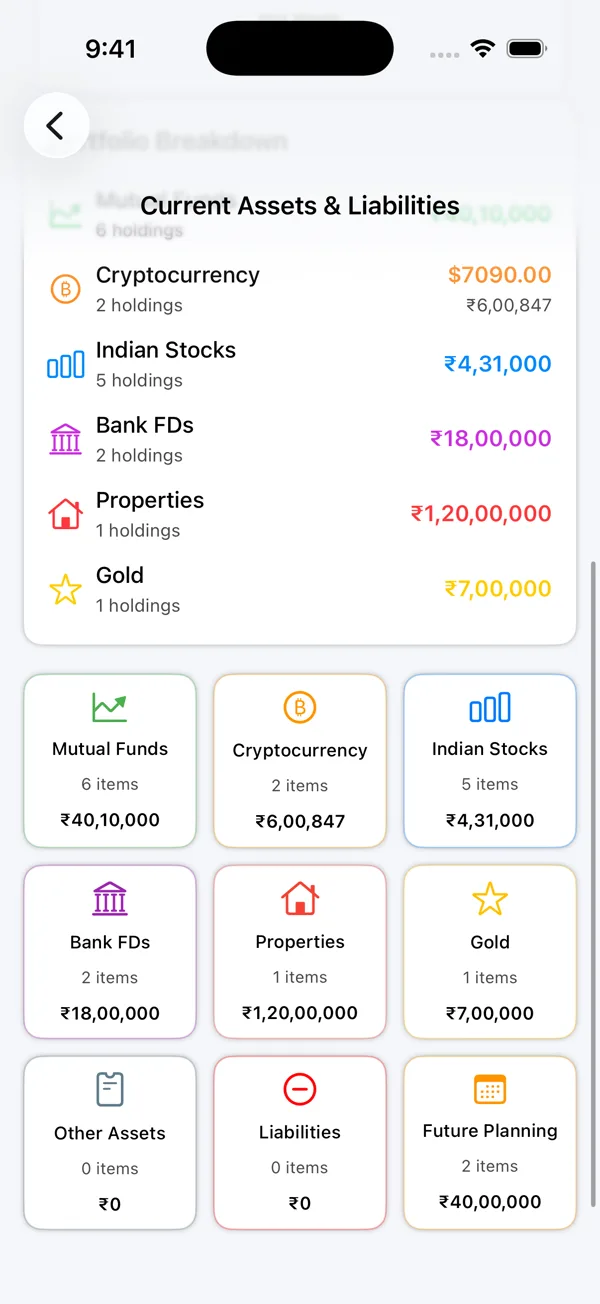
Holdings is the live tracking at the heart of the app. Everything is organised by type: mutual funds, stocks, crypto, fixed deposits, gold, property — and your loans.

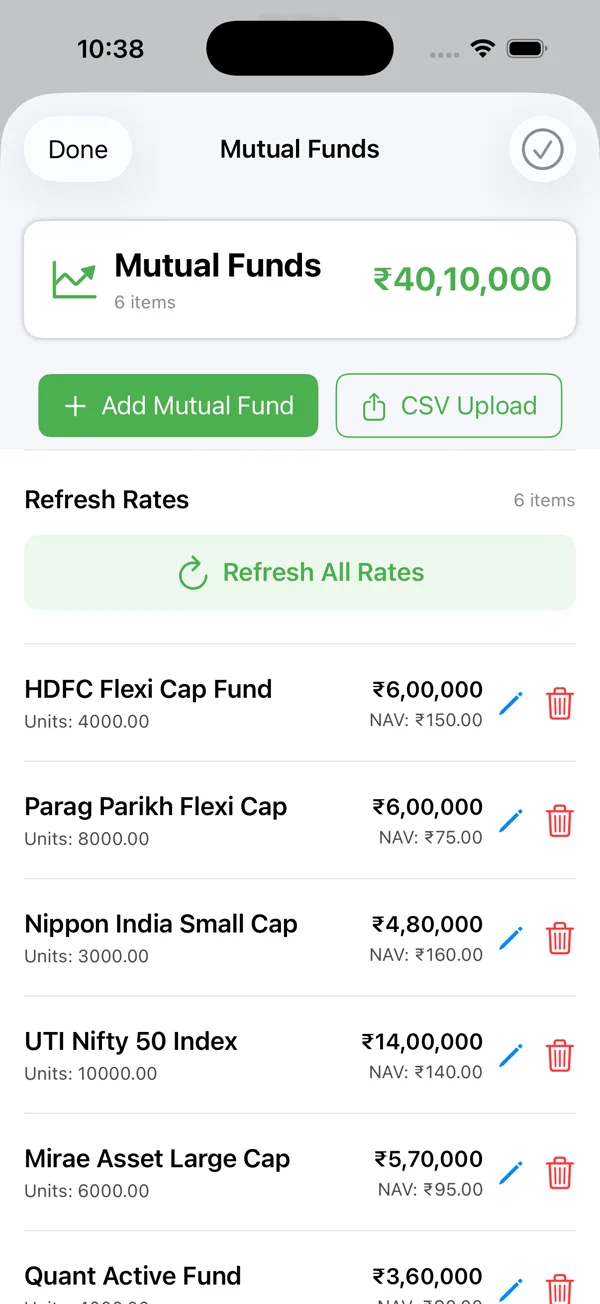
  1. Open a category — for example Mutual Funds.
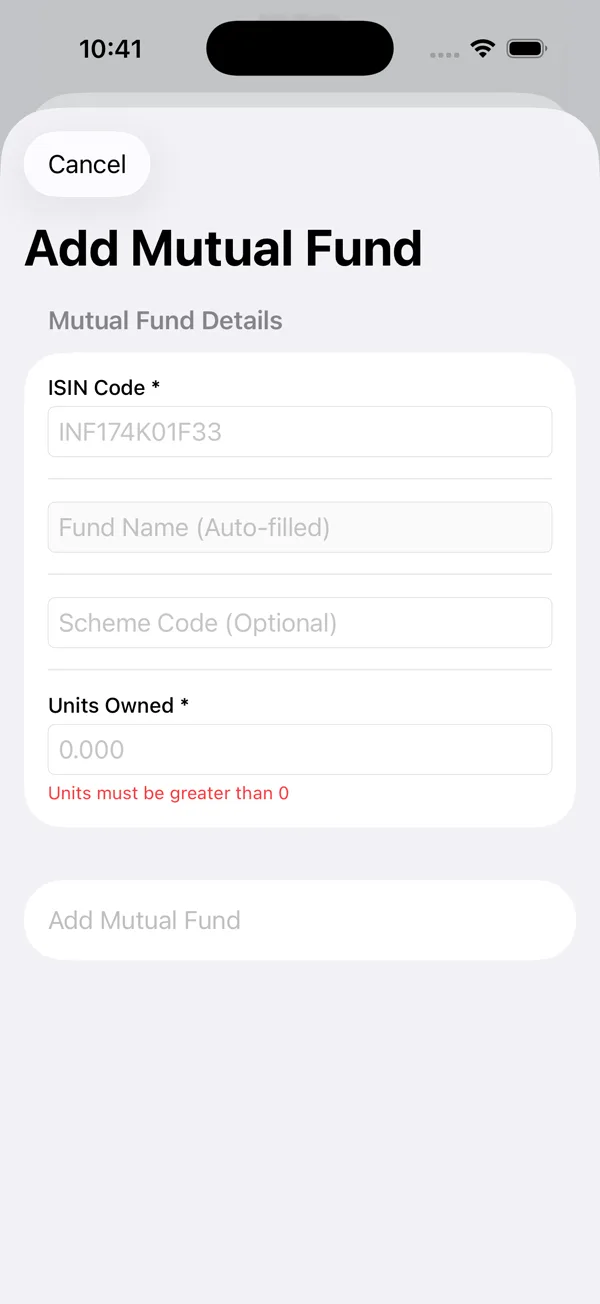
  2. Tap Add. Fields marked with a star are required.
  3. For a fund, enter its ISIN code and the units you own. The name and live price fill in automatically.

Have a long list? Use CSV Upload to import everything at once. For mutual funds the format is simply ISIN,Units on each line.

Holdings categories Mutual fund list Add mutual fund form
Step 6

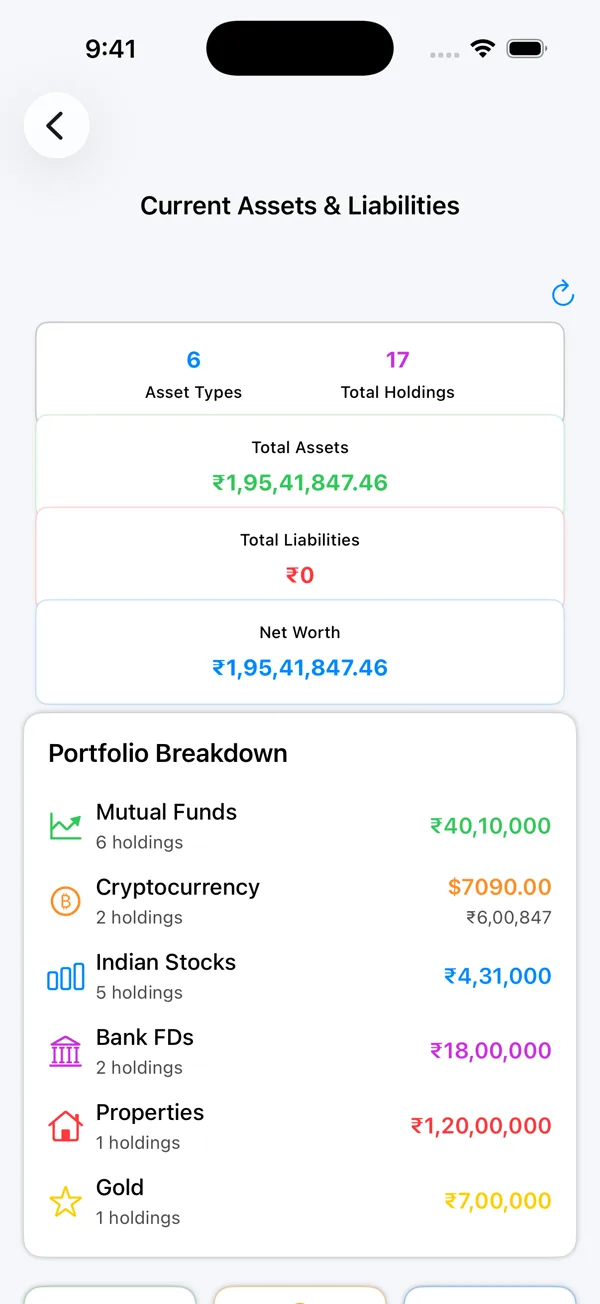
See one clear net worth

As you add assets, they come together into one net worth — what you own minus what you owe — so you always know exactly where you stand today.

Prices refresh automatically when you open the app. If a price can't be fetched, the app shows an error rather than a guess — tap Refresh All Rates to try again.

Net worth screen
Step 7

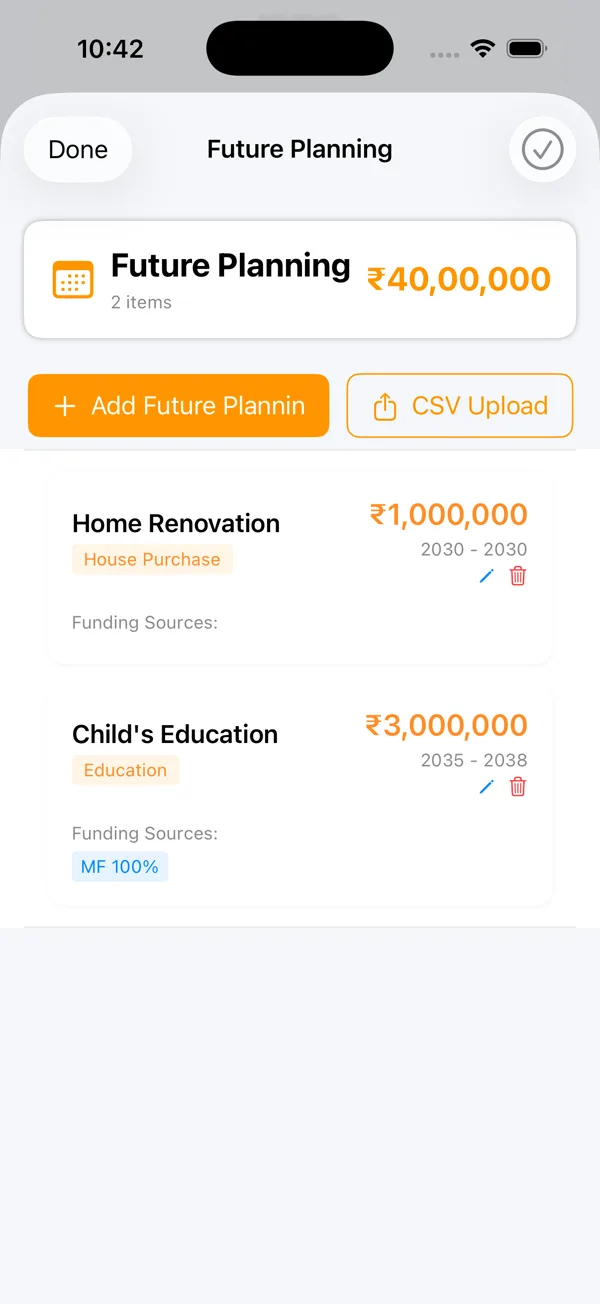
Plan life's big moments

Open Future Planning and tap Add for each goal — a child's education, a wedding, a new home.

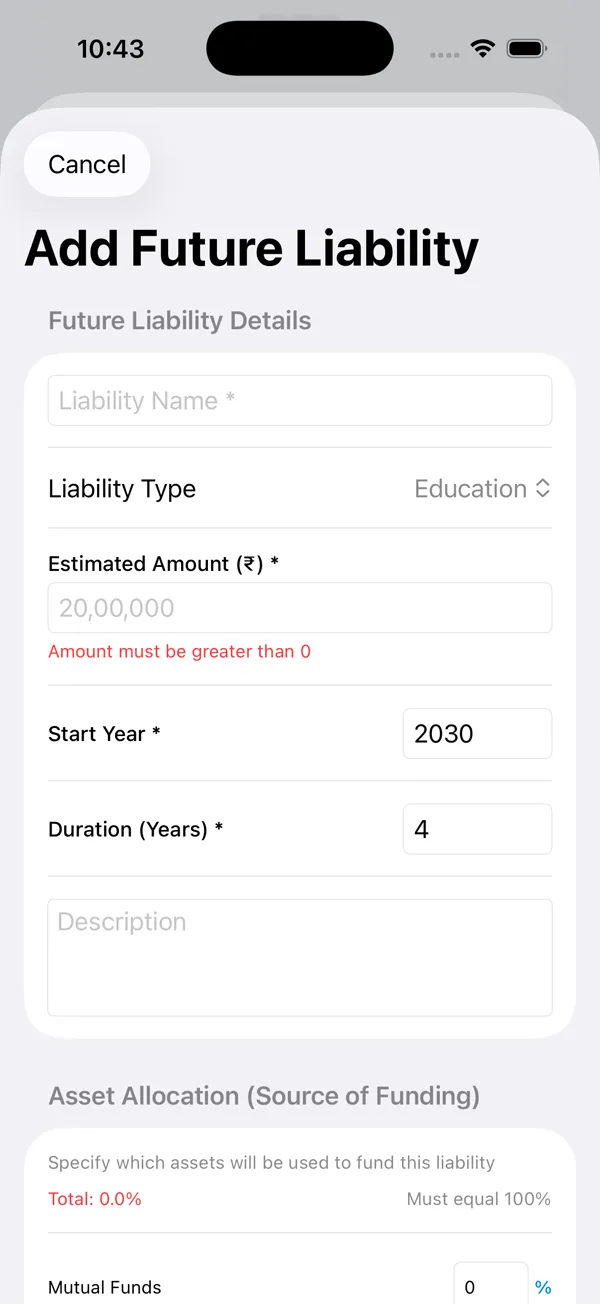
  1. Enter what it is and the amount.
  2. Choose the year it begins and how many years it runs.
  3. Pick which assets fund it — the allocation needs to add up to 100%.
Future planning list Add a goal form
Step 8

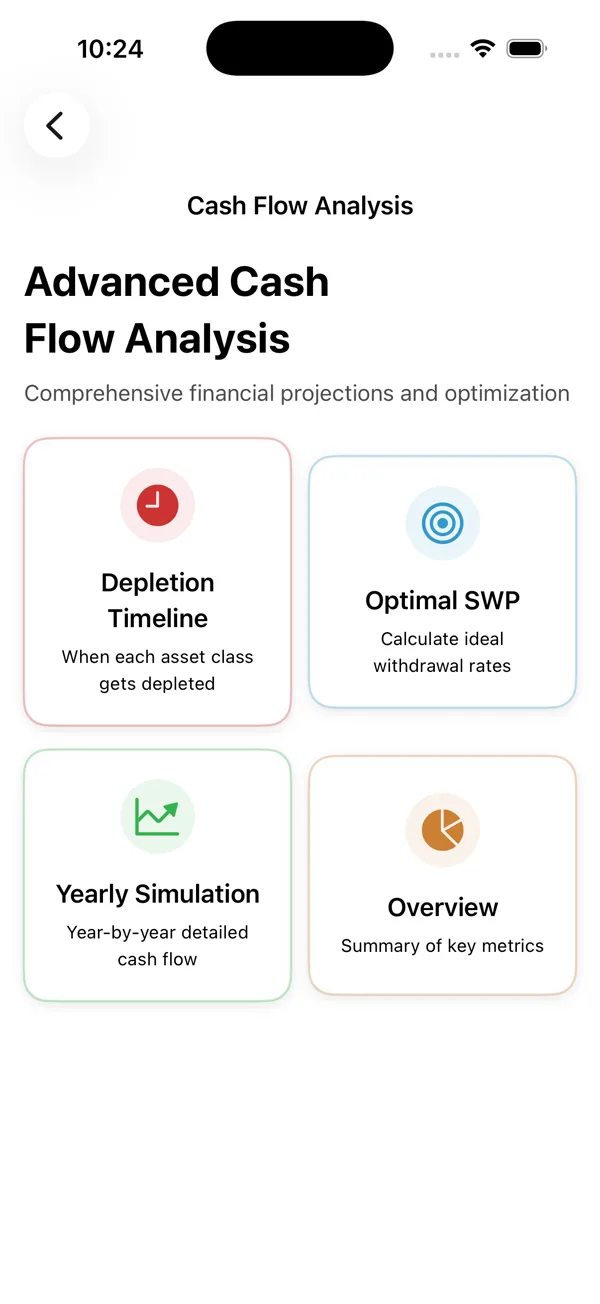
Cash Flow — the FIRE simulation

Everything you entered turns into a clear picture of your future, through four views:

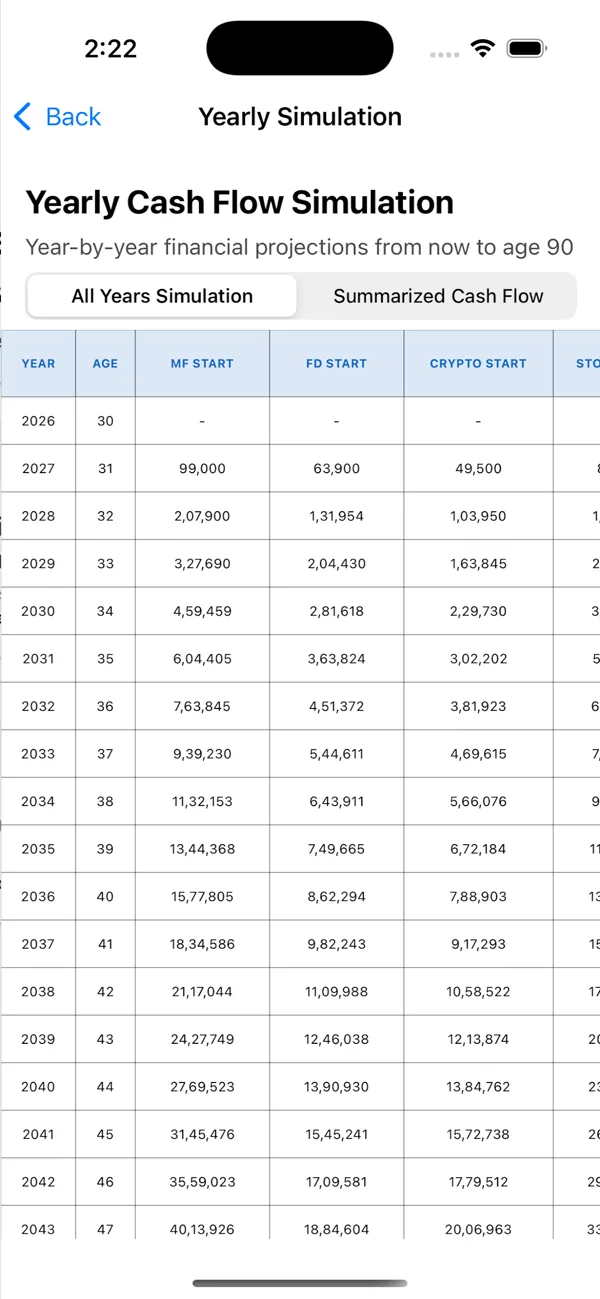
  • Yearly Simulation — your money walked forward year by year to age 90: income, growth, spending and withdrawals.
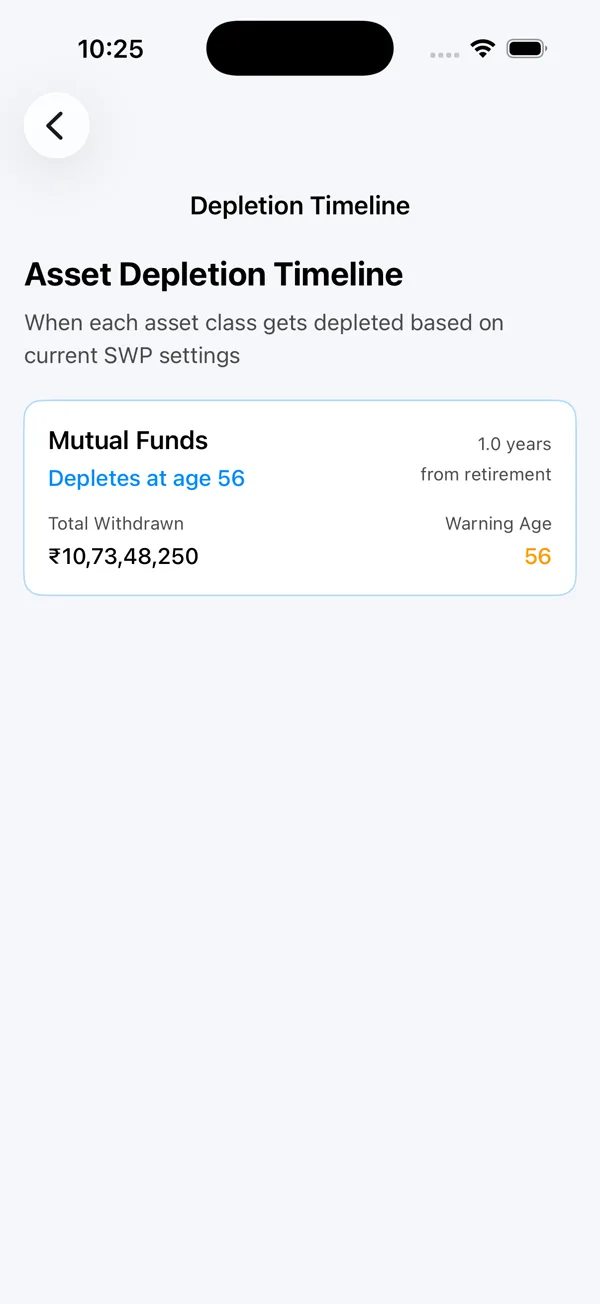
  • Depletion Timeline — how long each asset class lasts under your plan, so you spot gaps early.
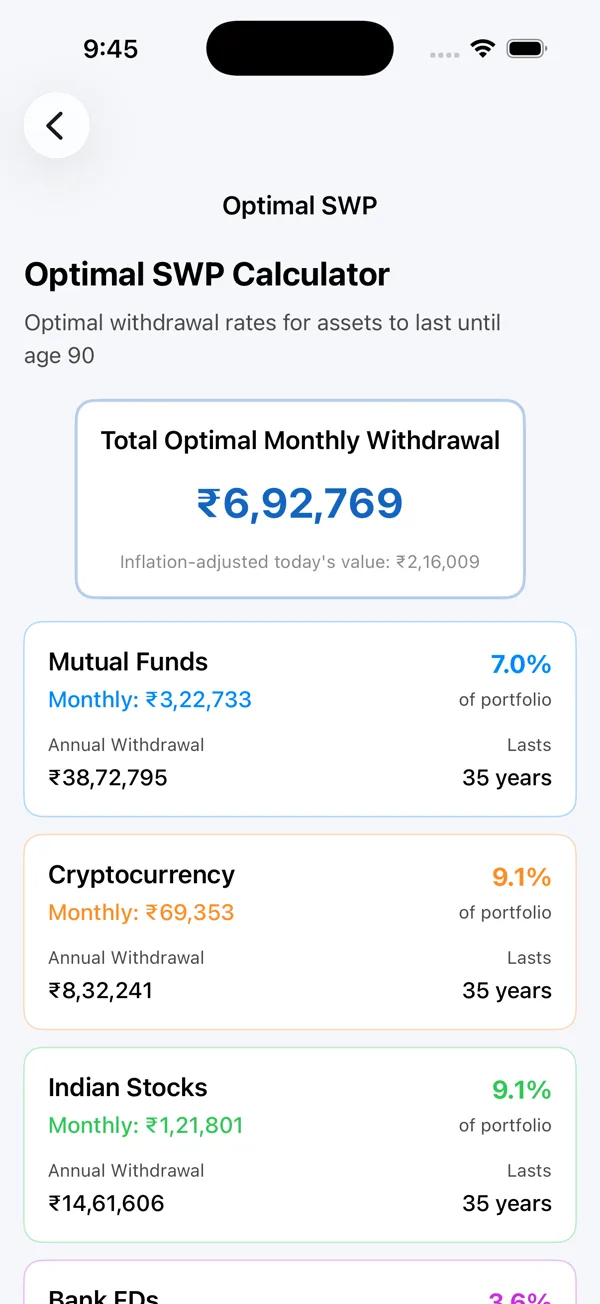
  • Optimal SWP — a steady amount you can withdraw through retirement, designed to last a lifetime.
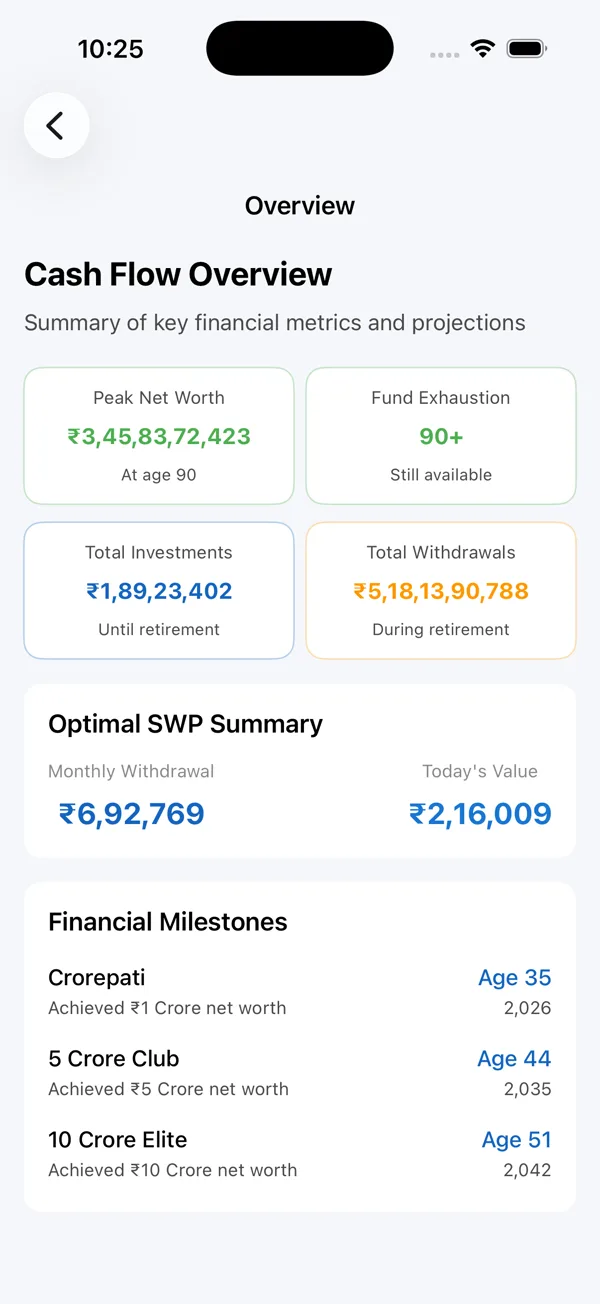
  • Overview — key figures and life milestones at a glance.
Cash flow menu Yearly simulation Depletion timeline Optimal SWP Overview
Step 9

Play with it — find your FIRE point

Go back to Profile → Advanced and change your retirement age, investments, expected growth or withdrawals — and watch every projection update.

Stress-test your plan: retire two years earlier? Invest a little more each month? A slower market? Change one input and the whole future updates instantly. That's how you find the year work becomes a choice, not a must.

Profile advanced settings
Step 10

Check your financial health

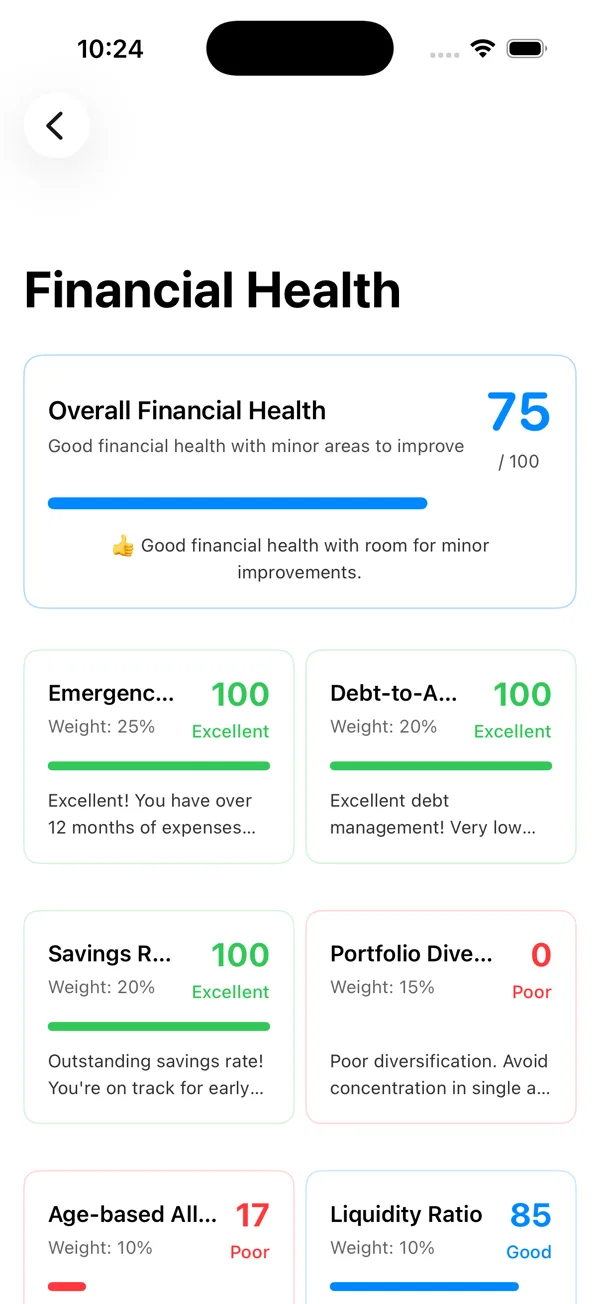
The Health screen gives your finances a score out of 100 — based on your emergency fund, debt-to-assets, savings rate, diversification, age-appropriate allocation and liquidity — and points out where you can improve.

Financial health score
Step 11

Themes, currency & backup

Back in Tutorial & App Settings:

  • Theme — dark, light or follow your system.
  • Currency — view your wealth in another currency with live exchange rates.
  • Backup & Restore — export your data as a file and restore it on the same or a new device.

Tip: your data lives only on your device, so take a backup before changing phones.

Tutorial and App Settings with Themes, Currency and Backup tabs

Reminder: screens use sample data for a fictional user. This guide explains how the app works and is not investment advice. The creator is not a certified / SEBI-registered financial adviser. Please consult a qualified professional before making decisions. Investments are subject to market risks.